

선행 노드(prerequisites)
https://vilhelm.tistory.com/12
CML(Cisco Modeling Labs)로 구현하는 VLAN과 NAT 실습
https://vilhelm.tistory.com/11이전 글에서 CML 설치 및 웹 브라우저 접속까지 완료했다.이번 글에서는 실제 토폴로지를 구성하고 VLAN과 NAT을 설정하는 과정을 다룰 것이다. 실습 목표VLAN 10, VLAN 20으로 네
vilhelm.tistory.com
1. Ubuntu 서버 추가
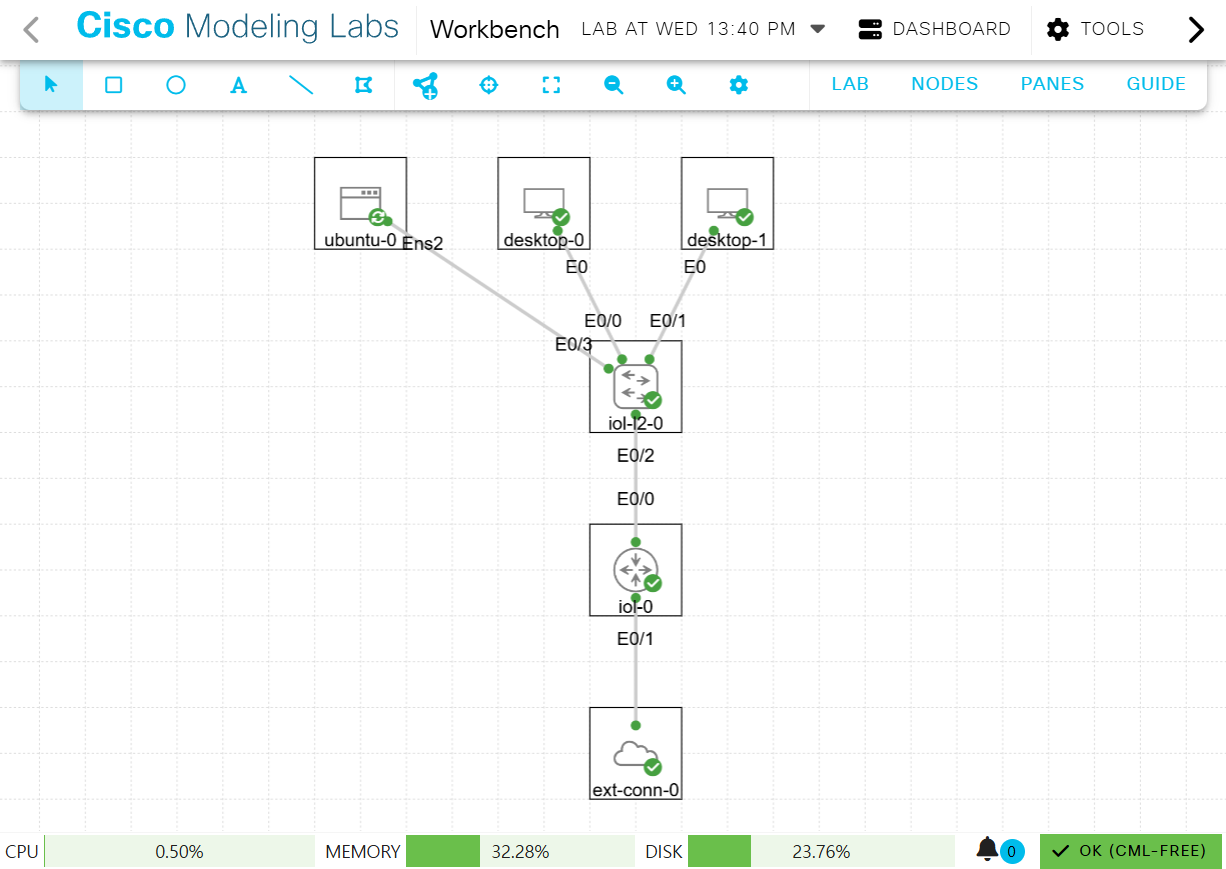
기존의 토폴로지에서 VLAN 10쪽에 ubuntu 서버 하나만 추가해준다.
스위치 콘솔에서:
enable
configure terminal

interface ethernet 0/3
switchport mode access
switchport access vlan 10
exit

#저장
write memory
ubuntu 로그인:
ID: cisco
PW: cisco
2. Ubuntu IP 설정
sudo ip addr add 192.168.10.20/24 dev ens2
sudo ip link set ens2 up
sudo ip route add default via 192.168.10.1
ip addr show ens2
ip route
설정 확인
ping 192.168.10.10
ping 192.168.20.10
ping 8.8.8.8
통신 확인
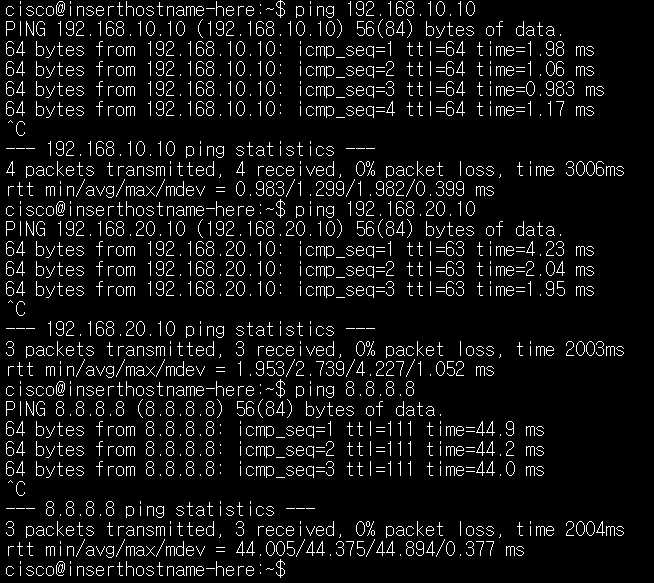
3. Nginx 설치
sudo sh -c 'echo "nameserver 8.8.8.8" > /etc/resolv.conf'
cat /etc/resolv.conf

#nameserver 8.8.8.8
DNS 서버를 지정해주지 않으면 패키지를 가져올 수가 없다.
resolv.conf에 nameserver 8.8.8.8이 저장됐는지 확인을 꼭 해준다.
sudo apt update
sudo apt install nginx -y
sudo systemctl status nginx
#active (running)설치 완료 후 상태 확인
4. 접속 테스트
Desktop-0 터미널에서:
wget -O - http://192.168.10.20
Alpine Linux는 curl이 없으므로 wget으로 웹페이지를 다운로드하고 cat으로 내용을 확인하였다.
5. Bind9 DNS 서버
Ubuntu 콘솔에서:
sudo apt install bind9 -y
설치가 완료되면
sudo nano /etc/bind/named.conf.local

zone "yourname.lab" {
    type master;
    file "/etc/bind/db.yourname.lab";
};
기본 설정을 해준다.

sudo cp /etc/bind/db.local /etc/bind/db.yourname.lab
sudo nano /etc/bind/db.yourname.lab

"""
내용을 아래처럼 수정:
"""

$TTL    604800
@   IN  SOA yourname.lab. root.yourname.lab. (
                  2         ; Serial
             604800         ; Refresh
              86400         ; Retry
            2419200         ; Expire
             604800 )       ; Negative Cache TTL
;
@   IN  NS  ns.yourname.lab.
ns  IN  A   192.168.10.20
www IN  A   192.168.10.20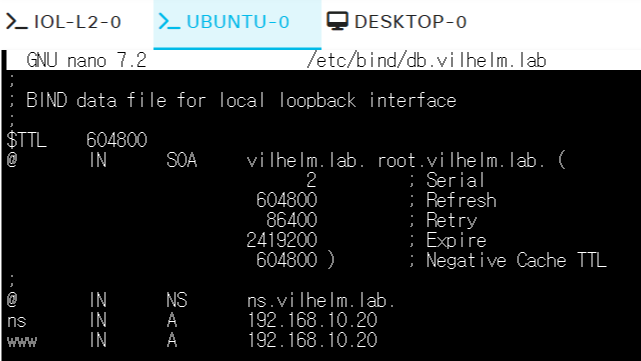
sudo systemctl restart bind9
sudo systemctl status bind9
Bind9 재시작
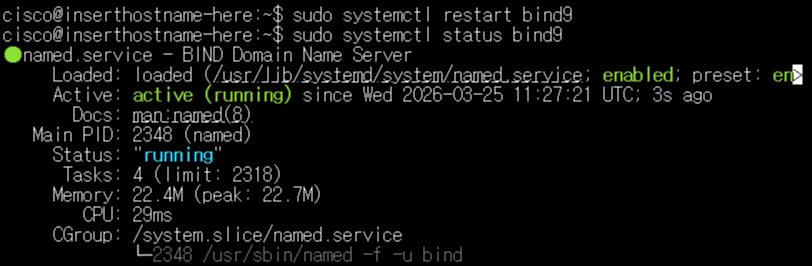
6. Desktop-0에서 DNS 테스트
sudo sh -c 'echo "nameserver 192.168.10.20" > /etc/resolv.conf'
cat /etc/resolv.conf

#nameserver 192.168.10.20

nslookup www.yourname.lab
DNS 서버를 설정하고 확인해준다.

wget -O - http://www.vilhelm.lab
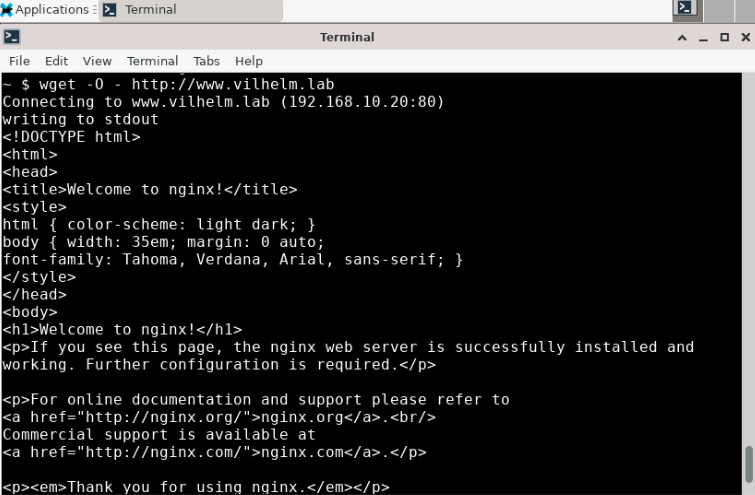
이렇게 해서 Nginx와 Bind9로 내부 네트워크 전용 DNS를 구축해봤다.
만약 회사 내부망이 있다고 하면,
사원 PC → 내부 DNS 서버 → IP 변환을 통해 도메인으로 서버 자원에 접근할 수 있다.
'Cisco > Cisco Modeling Labs' 카테고리의 다른 글
| Cisco IOS CLI 기초 명령어 총정리 | show, 설정 저장, 백업·복원 방법 (0) | 2026.03.29 |
|---|---|
| Cisco IOS CLI 사용법 | 네트워크 엔지니어 필수 명령어 (0) | 2026.03.28 |
| CML VLAN·NAT 설정 실습 | Cisco Modeling Labs 토폴로지 구성 방법 (0) | 2026.03.23 |
| CML(Cisco Modeling Labs) 다운로드 & 실습 환경 구축 (0) | 2026.03.19 |